

Picture this: you sit down at your desk, plug in a single cable, and suddenly your laptop is powering two large monitors, a wired network connection, and all your USB peripherals at once. That is exactly what a quality docking station delivers. Whether you are a remote worker juggling spreadsheets and video calls or a creative professional who needs screen real estate to spare, the right dock can completely transform how you work.
This guide covers the best laptop docking station for dual monitors available right now, with options from trusted brands like Anker, Dell, Selore, and MOKiN. We evaluated each one based on display output quality, port variety, charging performance, and real-world compatibility. If you are also thinking about other ways to level up your setup, our roundup of the best laptop accessories is a great place to start.
Quick answer
This guide compares 5 picks, with Anker 8-in-1 USB-C Docking Station, Dual 4K HDMI, 85W ranked first.

Anker 8-in-1 USB-C Docking Station, Dual 4K HDMI
With 4K HDMI output and an 8-in-1 layout, this hub gives dual monitor setups the ports needed without extra adapters. The powered design supports Ethernet and USB 3.0 alongside video, so a reader running two displays off a Lenovo, HP, Dell, or Mac laptop gets stable connections without bandwidth or power complaints.
Pros
- Dual HDMI supports two 4K/30Hz monitors or one at 4K/60Hz
- 85W Power Delivery keeps the laptop charging while docked
- Compact 3.2 oz build is easy to travel with
- Built-in Ethernet and microSD reader reduce cable clutter
Cons
- macOS mirrors both external displays instead of extending them
- No Linux support, and full charging needs your own 100W adapter
If your main goal is running two external monitors off a single USB-C laptop, this Anker dock earns its spot with dual HDMI outputs that push two 4K displays at 30Hz, or one at a full 4K 60Hz. That flexibility matters for a dual monitor setup where you want to size resolution against refresh rate depending on your work. The 85W Power Delivery pass-through means your laptop keeps charging while both screens, Ethernet, and USB peripherals stay connected, so you are not juggling a separate charger alongside the dock. At 3.2 ounces and just over 4.6 inches, it is small enough to leave permanently wired to a dual monitor desk setup or toss in a bag for a hybrid office day. The 1Gbps Ethernet port adds stable wired internet for video calls across two screens, and the built-in microSD reader removes another dongle from the mix. Just confirm your laptop is Windows or a USB-C Mac, since Linux is not supported and macOS mirrors rather than extends across the two displays.
Connectivity Ports: 1x USB-C PD-IN (charging), 2x USB-A 3.0 data, 2x HDMI 2.0, 1x Gigabit Ethernet, 1x microSD/SD card reader
Video Performance: Dual HDMI at 4K@30Hz, or single HDMI at 4K@60Hz. Supports DP Alt Mode for display output.
Power Delivery: Up to 85W pass-through charging (requires 100W PD adapter). Charges laptop while all ports remain active.
Compatibility: USB-C, USB4, and Thunderbolt 3/4 ports. Works with Windows 10+, ChromeOS, and laptops with DP Alt Mode. Not compatible with Linux or older operating systems.
Physical Specs: Dimensions 4.65L x 2.01W x 0.69H inches. Weight 3.2 ounces. ABS plastic construction. Available in gray. Model A83800A1.
Warranty: 18-month worry-free warranty with Anker customer support.
Best for Windows laptop users, including Dell, HP, and Lenovo owners, who want a compact permanent dual monitor hub with charging built in. Also fine for MacBook users okay with mirrored displays instead of extended desktop. Skip it if you run Linux, need independent (not mirrored) dual displays on macOS, or already own a 100W USB-C charger you'd rather not need, since full 85W charging requires your own adapter and cable.

Ten total ports including DisplayPort and HDMI make this a strong match for dual monitor work across mixed OS environments, from Windows to Ubuntu and ChromeOS. The 130W wattage handles charging demands of larger laptops, while six USB ports keep peripherals connected without daisy chaining extra hubs.
Pros
- Wide OS support across Windows, Ubuntu, RHEL, and ChromeOS
- 10 total ports including 6 USB, DisplayPort, HDMI, and Ethernet
- 130W rating gives ample power headroom
- Compact and lightweight at 1.2 pounds
Cons
- Only one HDMI and one DisplayPort listed, worth confirming against your monitor setup
- Dell branding may feel less universal for non-Dell laptop owners
For a dual monitor setup that needs to work across more than just Windows, the Dell Pro WD25 stands out for its broad OS support, listing Windows 10, Windows 11, Ubuntu 24.04, Red Hat Enterprise Linux 9.6+, and ChromeOS 137 as compatible. That kind of cross-platform reach is unusual in a docking station and makes it a safer pick for mixed-device offices or IT fleets where not every machine runs the same OS. With 10 total ports, including 6 USB ports, DisplayPort, HDMI, and Ethernet, it covers the connections a two-monitor workstation typically needs without extra adapters. The 130W rating gives it headroom for powering a laptop plus connected peripherals through a single cable. Its compact footprint, at roughly 8 inches by 3.5 inches and 1.2 pounds, keeps it manageable on a desk rather than adding another bulky box. As a Dell branded dock, it fits naturally into environments already standardized on Dell hardware, though the DisplayPort and HDMI combination should be checked against your specific monitor inputs before buying.
Connectivity and Ports: 10 total ports including 6 USB ports, 1 HDMI port, Ethernet, and DisplayPort. Supports up to 4 high-resolution displays simultaneously.
Power Delivery: 100W USB-C power delivery charges compatible laptops while docking. 130W wattage supports full functionality across all ports.
Compatibility: Windows 10, Windows 11, Ubuntu 24.04, Red Hat Enterprise Linux 9.6+, and ChromeOS 137. Works with Dell AI PCs and non-Dell systems supporting USB-C.
Physical Design: Dimensions 8.07 inches length by 3.54 inches width by 1.39 inches height. Weighs 1.2 pounds. Black color with ambidextrous cable routing. Includes 3-year limited hardware warranty with advanced exchange.
Good for IT departments and professionals managing a mix of Windows, Linux, and ChromeOS laptops who need one dock that works across all of them for dual monitor use. Also suits Dell laptop owners wanting a brand-matched accessory. Skip it if you specifically need dual HDMI or dual DisplayPort outputs, since the listed ports show one of each rather than two matching video outputs.

Fourteen ports and both HDMI and VGA outputs let this dock bridge older and newer monitors in the same dual screen setup, a common headache for readers with mismatched displays. The 10 gigabits per second transfer rate keeps external drives responsive even while both screens run simultaneously.
Pros
- Supports three simultaneous monitors via dual HDMI and VGA
- 10Gbps USB 3.1 transfer speed for external drives
- 100W Power Delivery charging built in
- Plug-and-play with no drivers needed on Windows or Mac
Cons
- USB ports don't carry video, so displays must use HDMI or VGA specifically
- Requires DisplayPort Alt Mode or Thunderbolt support to work at all
For anyone chasing a true multi-monitor setup rather than just dual screens, the Selore 14-in-1 goes further than most by supporting three displays at once through dual HDMI plus VGA, letting Windows users extend across all three rather than settle for two. That makes it worth a look for this article's dual monitor focus if you want room to add a third screen later without buying a new dock. Seven USB ports and 10Gbps transfer speeds on the USB 3.1 side mean external drives and peripherals move data quickly, and 100W Power Delivery charging cuts down on separate power bricks. It is plug-and-play on both Windows and Mac, so there is no driver install standing between you and a working setup. The tradeoff is that video has to run through the dedicated HDMI or VGA ports specifically, since the USB ports on this dock handle only data and charging. Your laptop also needs DisplayPort Alt Mode or Thunderbolt support for the video outputs to function.
Connectivity Ports: 2x 4K HDMI, 1x VGA, 3x USB-C 10Gbps, 4x USB-A (including 2x USB 2.0), 1x Gigabit Ethernet, 1x 3.5mm audio, SD and microSD card readers
Power Delivery: 100W input, 87W output for charging compatible USB-C devices and laptops
Data Transfer Speeds: USB 3.1 up to 10Gbps, USB 2.0 up to 480Mbps, SD/microSD up to 200Mbps
Display Support: Windows: Mirror and Extend modes for three simultaneous displays. Mac: Mirror mode only on M1 and M2 chips
Compatibility: MacBook Pro/Air (2017 and newer), Dell XPS 13/15, Microsoft Surface devices, Lenovo Yoga series, and any device with USB-C or Thunderbolt 3 supporting DisplayPort Alternate Mode
Operating Systems: Windows 7, Windows 10, macOS 9 and later
Warranty: 2 years

Built for Thunderbolt 3/4/5 and USB-C laptops, this compact hub suits readers wanting fast data transfer at 10 gigabits per second alongside dual monitor output. The 8-in-1 port count covers charging and peripherals in one connection, though Mac users should note external displays mirror rather than extend.
Pros
- Dual 4K@60Hz output for true extended dual-monitor use
- 10 Gbps transfer speed across USB-A and USB-C
- Compact 7.87-inch aluminum-finish design for travel
- 85W pass-through charging while running two displays
Cons
- Requires a 100W adapter to unlock full 85W charging
- macOS limited to mirrored displays, not extended
If your main goal is running two external monitors off one laptop cable, the Anker Nano earns its spot through dual 4K@60Hz HDMI output paired with 10 Gbps data speeds, so screens stay sharp and file transfers keep pace with a dual-display workflow. The 7.87-inch aluminum-finish body is small enough to slide into a bag, which matters if your dual-monitor setup moves between office and home. Eight ports, including SD/TF readers at 104 MB/s, mean you're not juggling extra adapters just to get both displays and peripherals connected at once. Windows 10 and Chrome OS users get the complete two-screen extended experience. The 85W pass-through charging keeps your laptop topped up while both monitors run, though you'll need a 100W adapter to actually reach that ceiling since 15W is set aside for the hub itself. For a dual-monitor docking setup on Windows hardware, this hits the core requirement cleanly without unnecessary bulk.
Connectivity: 1x USB-C upstream (85W max), 1x USB-C PD input (100W max), 1x USB-C data (10 Gbps), 2x USB-A data (10 Gbps each), 2x HDMI (4K@60Hz), SD/TF card slots (104 MB/s)
Performance: Data transfer rate up to 10 gigabits per second on all USB ports. Dual 4K@60Hz video output with DP 1.4 and DSC 3:1 support. 85W max pass-through charging with 100W PD input.
Physical: Dimensions 7.87"L x 4.13"W x 0.79"H. Weight 3.84 ounces. Color gray. Model A210B.
Compatibility: Windows 10/11, Chrome OS, and USB-C devices supporting DP Alt Mode and Power Delivery. Full functionality with USB-C, USB4, Thunderbolt 3/4/5 laptops from Dell, Lenovo, HP, and others. macOS compatible with display mirroring only.
Warranty: 18-month hassle-free warranty with Anker customer support included.
Best for Windows laptop owners who want a genuinely extended dual-monitor desk setup in a small, travel-ready hub. Skip it if you're on a Mac, since external displays only mirror rather than extend, defeating the dual-monitor purpose. Also skip it if you lack a 100W USB-C charger, since full charging speed won't be available otherwise. Linux users aren't supported either.
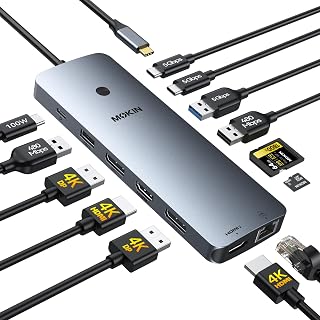
Fourteen ports paired with 4K HDMI give this hub enough headroom for dual monitor setups plus peripherals like keyboards and external storage. Plug and play support across Dell, HP, and Mac laptops means a reader switching between work devices can dock in seconds without reinstalling drivers each time.
Pros
- Dual 4K output with flexible HDMI/DisplayPort combinations
- 100W Power Delivery for laptop and peripherals together
- Privacy lock button disables all displays instantly
- Compact build suited to both desk and travel use
Cons
- macOS restricted to mirrored displays, not extended
- Some power-hungry USB peripherals may hit compatibility limits
For a dual-monitor docking setup, the MOKiN 14-in-1 goes a step further than most by supporting either 2 HDMI plus 1 DisplayPort or 2 DisplayPort plus 1 HDMI, so you can run dual 4K displays now and have a third output ready if your needs grow. That flexibility makes it a strong pick for anyone building a serious two-screen workstation rather than a minimal travel setup. The single USB-C connection to the laptop keeps cable clutter down despite the 14-port count, and 100W Power Delivery means your laptop charges while both monitors and peripherals draw power simultaneously. A privacy lock button that instantly kills all displays is a nice extra for shared or open workspaces. Compact and well-built, it works as a permanent desk fixture or something you pack up between locations. Windows laptops get the full extended dual-monitor experience without restriction, which is the priority for this use case. macOS falls short here, so factor that in based on your hardware.
Connectivity: 2x HDMI 2.0, 2x DisplayPort 1.2, 1x Gigabit Ethernet (RJ45), 2x USB-C 3.0, 1x USB-A 3.0, 2x USB-A 2.0, SD/microSD card reader, 1x USB-C Power Delivery port
Power: 100W maximum USB-C Power Delivery, plug-and-play operation (external power recommended for optimal performance)
Compatibility: Thunderbolt 3/4 laptops and MacBooks, Windows 10 and later, macOS
Performance: 5Gbps USB 3.0 data transfer, 1000Mbps Ethernet, supports up to 3 external 4K displays (single stream transport on macOS)
Physical: Compact design, 0.1 kg weight, space-saving form factor suitable for desks and travel
Warranty: 2-year manufacturer coverage
Good fit for Windows users setting up a dedicated dual (or triple) monitor workstation who also want strong charging and port variety in one connection. Also suits security-conscious office setups thanks to the privacy lock. Skip it if you're on a Mac, since displays mirror instead of extend, undercutting the dual-monitor goal. Also reconsider if you're running several power-hungry USB peripherals simultaneously.
What to Look for in a Dual Monitor Docking Station
Display Output and Resolution
The most important spec to confirm is whether the dock can drive two independent screens at the resolution you need. For sharp, detailed visuals, look for dual HDMI ports that support 4K at 30Hz or higher, or a mix of HDMI and DisplayPort outputs that reach 4K at 60Hz on at least one display.
Keep in mind that macOS handles multi-monitor docks differently from Windows. Most USB-C docks on macOS will mirror your displays rather than extend them, due to operating system limitations. If extended dual-monitor mode is a priority, a Windows machine will give you the most flexibility.
USB-C Port Compatibility
Not every USB-C port is created equal. To get video output from a dock, your laptop’s USB-C port must support DisplayPort Alternate Mode, Thunderbolt 3, or Thunderbolt 4. A dock like the MOKiN Laptop Docking Station Dual Monitor 4K HDMI explicitly requires Thunderbolt 3/4 or a full-function USB-C port, so checking your laptop’s spec sheet before buying is a must.
If you are unsure about your laptop’s capabilities, cross-reference the manufacturer’s port specifications. Pairing the wrong dock with an incompatible port is the number one reason users run into display issues out of the box. For a broader look at compatible laptop hardware, see our guide to the best laptops available this year.
Power Delivery and Charging
A good docking station should charge your laptop while it works, not just connect peripherals. Look for pass-through Power Delivery of at least 85W to keep most modern laptops fully charged under load. The Anker Laptop Docking Station Dual Monitor and Selore USB C Docking Station Dual Monitor both support up to 100W PD input, though the actual pass-through output is slightly lower to account for hub operation overhead.
Always confirm that your wall charger and cable can supply the wattage the dock requires. Most 100W PD docks will not reach peak charging speeds unless you feed them with a 100W adapter and a compatible USB-C cable, neither of which is typically included in the box. Pairing your dock with a reliable portable charger for your laptop can also add flexibility when you work away from your desk.
Port Selection and Expandability
Beyond display outputs, a practical docking station should handle everything your desk throws at it. Prioritize docks that include at least one Gigabit Ethernet port for a stable wired connection, multiple USB-A ports for legacy devices, and an SD card slot if you work with cameras or memory cards regularly.
The Dell Pro Laptop Docking Station WD25, USB-C, 100W stands out here with native support for up to four displays and enterprise-grade manageability features, making it a strong fit for IT-managed workplaces. Meanwhile, the Selore USB C Docking Station Dual Monitor packs 14 ports into a compact frame, covering dual HDMI, VGA, audio, and multiple USB 3.1 slots in one affordable unit. If you are also thinking about cooling under heavier workloads, our picks for the best laptop cooling pads pair well with a fully loaded docking setup.
Final Thoughts
For most users who want a reliable, no-fuss dual monitor experience, the Anker Laptop Docking Station Dual Monitor hits the sweet spot with broad compatibility, solid 4K output, and strong pass-through charging. If your workplace demands enterprise-level reliability and centralized management, the Dell Pro Laptop Docking Station WD25, USB-C, 100W is worth the premium for its durability, sustainable design, and IT-friendly features.
Frequently Asked Questions
Can any laptop use a dual monitor docking station?
Not every laptop is compatible out of the box. Your laptop’s USB-C port needs to support DisplayPort Alternate Mode or Thunderbolt 3/4 to output video through a dock. Standard USB-C ports that only handle data and charging will not work for display output, so always verify your laptop’s port specification before purchasing.
Will a docking station work with a MacBook for dual monitors in 2026?
It depends on your MacBook model and the dock you choose. Most USB-C docks on macOS will mirror both external displays rather than extend them independently, due to how Apple handles multi-display output over a single USB-C connection. MacBooks with Apple Silicon (M1 and later) can sometimes support extended displays with specific docks or adapters, but it is worth confirming compatibility before you buy. Our guide to the best gaming laptops for work also covers display output considerations for different platforms.
How many watts of power delivery do I need from a docking station?
For most laptops, a dock with 85W to 100W pass-through charging is sufficient to keep your battery topped up while running peripherals and dual monitors simultaneously. Thin-and-light laptops can often get by with 65W, but performance laptops and mobile workstations benefit from a full 100W input. Remember that the dock itself consumes some power during operation, so the actual charging output is usually 5 to 15 watts lower than the rated input.
Is it better to get a USB-C hub or a full docking station for dual monitors?
A full docking station typically offers more ports, higher power delivery, and better thermal management than a compact USB-C hub. If you plan to run two monitors, a wired network connection, and multiple peripherals all at once, a dedicated dock will handle the workload more reliably. A portable hub makes sense for travel or light use, but for a permanent desk setup, a proper docking station is the smarter long-term investment.





Write Your Review
No reviews yet. Be the first to share your experience!